How to Download Instagram Reels in HD (No Watermark)
You found a Reel you love - a recipe you want to try later, a workout routine, a tutorial, or just something hilarious you want to show someone who is not on Instagram. You tap the save button, but that just bookmarks it inside the app. You still need internet and the Instagram app to watch it again. And if the poster deletes it? Gone.
We built our Reels Downloader because we ran into this exact problem ourselves. You should be able to save a video you want to keep. Here is how to download Instagram Reels in HD using our tool and a few other methods.
Method 1: Use Our Reels Downloader (The Easy Way)
We will be upfront: this is our tool and we think it is the best option. But do not just take our word for it - try it yourself, it takes about 10 seconds.
Step-by-Step
- Find the Reel - Open Instagram and find the Reel you want. Note the username of the person who posted it, or tap the three-dot menu and copy the link
- Open our Reels Downloader - No signup, no login, just a search bar
- Enter the username - Type or paste the username and hit Search
- Find the Reel - Browse through their Reels until you find the one you want
- Download - Hit the download button. That is it.
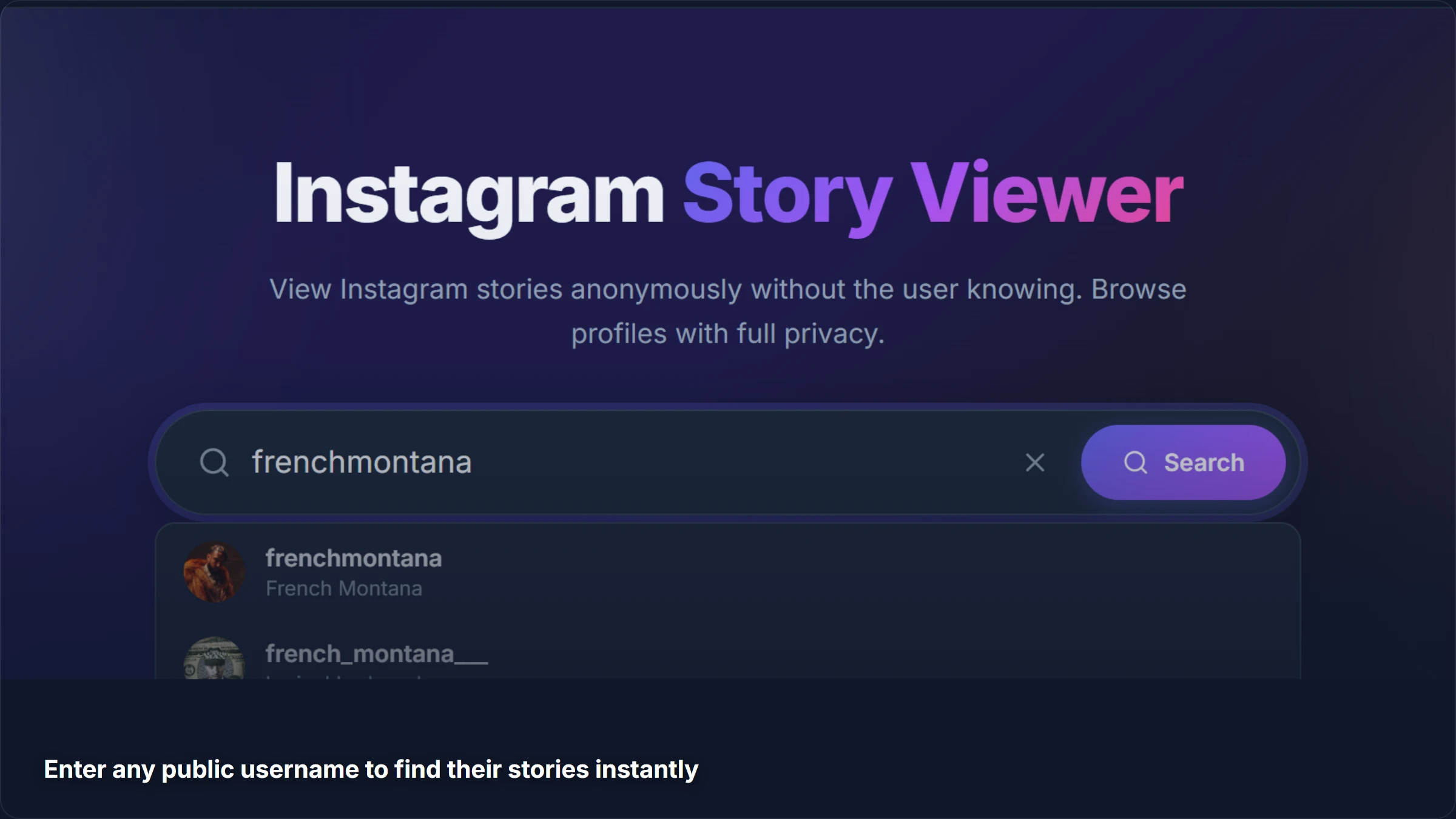
The Reel downloads in its original HD quality as an MP4 file. No watermark added, no quality reduction, no branding stamped on top. The exact same file that was uploaded to Instagram.
Why We Built This
Instagram does not give you a download button for Reels. Their "Save" feature just bookmarks it inside the app, and their "Share" feature only sends a link. We think if someone posted something publicly, you should be able to save it to your camera roll.
Our tool also does not require your Instagram login. We never ask for your password, and you should be suspicious of any tool that does.
What You Get
- Original quality - Same resolution and bitrate as the uploaded Reel
- MP4 format - Plays on literally any device or media player
- No watermark - Unlike TikTok downloads, we do not stamp anything on the video
- No login - You do not need an Instagram account
- No limits - Download as many Reels as you want, it is free
- Works everywhere - Phone, tablet, laptop, any browser
Method 2: Instagram's Built-In "Save" Feature
Instagram lets you save Reels to a private collection within the app:
- Tap the bookmark icon below the Reel
- Choose a collection or create a new one
- Access saved Reels from your profile, then tap the hamburger menu and go to "Saved"
Why This Is Not Really "Downloading"
This is just bookmarking. The video is not on your device. It has several problems:
- You need internet and the Instagram app to watch it later
- If the poster deletes the Reel, it disappears from your saved collection too
- If the poster goes private, you lose access (unless you follow them)
- You cannot share it outside Instagram as a file
- No offline access - No signal, no saved Reels
This feature is fine for quickly bookmarking something you want to revisit, but it is not a download.
Method 3: Screen Recording
Every modern device has a built-in screen recorder:
- iPhone - Go to Settings > Control Center > add Screen Recording, then swipe down from the top-right to start
- Android - Swipe down the notification shade and tap Screen Record
- Windows - Press Win + G to open the Game Bar, then click Record
- Mac - Press Cmd + Shift + 5
Why We Do Not Recommend This
- Quality loss - You are recording your screen, not the original file. The quality depends on your screen resolution and recording settings, and it is always worse than the original
- UI elements captured - The Instagram interface, notifications, status bar, and any popups all end up in your recording
- Awkward cropping - The Reel plays in a phone-shaped window. You get black bars or Instagram UI around it
- Audio issues - If a notification sound goes off during recording, it is in your video forever
- Time-consuming - You have to play the entire Reel in real time while recording
Screen recording is a last resort. If a proper downloader exists (and it does), there is no reason to screen record.
Method 4: Using Instagram's "Share" to Get a Link
You can copy a Reel's link by tapping the share button and selecting "Copy Link." Some people paste this into various online converter sites.
This works, but be careful about which site you use. Many of these sites are ad-infested, inject malware, or redirect you through a maze of popups before giving you a download link that does not work.
With our tool, you do not even need the URL. Just enter the username and browse their Reels visually. But if you already have a link and want to convert it, make sure you are using a reputable tool.
Downloading Reels on Different Devices
On iPhone / iPad
iPhones used to make downloading external files a pain, but iOS has gotten better about this:
- Open our Reels Downloader in Safari
- Search the username and find the Reel
- Tap Download
- Safari will show a download prompt or save it to your Files app
- From Files, you can save to your Camera Roll
On Android
Android makes this easy:
- Open our Reels Downloader in Chrome
- Search and find the Reel
- Tap Download
- The MP4 saves directly to your Downloads folder
- It also appears in your Gallery/Photos app
On Desktop (Windows / Mac)
- Open our Reels Downloader in any browser
- Search and download
- The MP4 saves to your Downloads folder
- Play it with VLC, Windows Media Player, QuickTime, or any video player
Tips for Getting the Best Quality
A few things we have noticed from building and testing our tool:
- Download from the original poster - If a Reel has been reposted or shared from another account, the quality may be slightly lower. Always go to the original creator for the best quality
- Wi-Fi helps - Not for the download itself, but for loading the Reel preview. Our tool fetches the highest available quality regardless, but previewing on a slow connection might make it look worse than it is
- Do not re-compress - Once you have the MP4, do not upload it to another service and re-download it. Every compression cycle reduces quality
- Check the creator's quality - Some Reels are uploaded in lower quality by the creator themselves. If the original Reel is blurry on Instagram, the download will be too
A Note About Copyright
We want to be straight about this: Reels are created by their posters, and downloading someone else's content comes with responsibility.
- Personal use is generally fine. Saving a recipe, a workout routine, or a tutorial for your own reference is reasonable
- Reposting without credit is not cool. If you share someone else's Reel, always credit the creator
- Commercial use requires permission from the original creator
- Our tool only accesses public content. We do not bypass privacy settings or access private accounts
We provide the tool, you use it responsibly.
Why Not Just Use Instagram's Own Features?
Fair question. Instagram gives you Save and Share buttons. Why use an external tool?
| Feature | Instagram Save | Instagram Share | StoriesDown |
|---|---|---|---|
| Offline access | No | No | Yes |
| Survives deletion | No | No | Yes |
| No account needed | No | No | Yes |
| Original quality file | No | No | Yes |
| Use outside Instagram | No | Link only | Yes |
| No watermark | N/A | N/A | Yes |
Instagram's built-in features are great for quick bookmarking within the app. But if you want an actual file on your device that you own and control, you need a downloader.
More Tools for Instagram Content
While you are downloading Reels, you might want to check out our other tools too:
- Story Viewer - Watch and download stories anonymously. The poster never knows you viewed them
- Photo Downloader - Save photos in full resolution, including carousel albums
- Highlights Saver - Browse and download highlight collections
- Video Downloader - Save video posts and IGTV content
Related Guides
- How to View Instagram Stories Anonymously - 5 methods for watching stories without appearing in the viewer list
- Can You See Who Views Your Instagram Profile? - The truth about profile view tracking
- Does Instagram Have Profile Views? - What Instagram analytics really show
Frequently Asked Questions
Can I download Reels from private accounts?
No. Our tool only accesses content from public accounts. If an account is set to private, their Reels are restricted to approved followers and cannot be downloaded through any external tool. Anyone claiming otherwise is lying.
Is there a limit on how many Reels I can download?
No. Our Reels Downloader is completely free with no download limits. Download one Reel or a hundred, it does not matter.
Will the Reel owner know I downloaded their video?
No. Downloading through our tool is completely anonymous. The creator does not receive any notification, and there is no "downloaded by" list anywhere on Instagram. They have no way to know.
What format and quality are the downloads?
Reels download as MP4 files in the same quality as the original upload. We do not compress, resize, or add watermarks. What the creator uploaded is what you get.
Can I download just the audio from a Reel?
The download includes both video and audio in a single MP4 file. If you only want the audio, you can extract it using any free video editor or online audio extractor. We might add audio-only downloads in the future if there is enough demand.
Ready to save some Reels? Head over to our Reels Downloader and search for any public username. Free, no signup, original HD quality.