Why are my Instagram videos blurry?
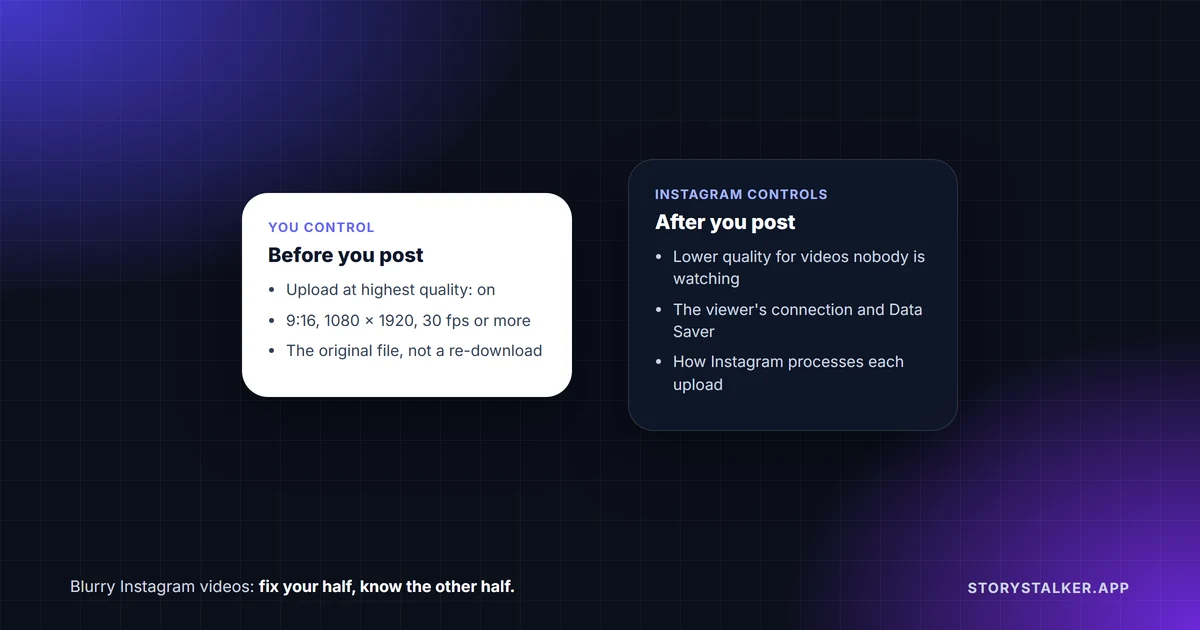
Start with one setting: Upload at highest quality. Go to your profile, tap Menu, then under Your app and media tap Media quality and turn on Upload at highest quality.1 The Help Center describes it on its Reels page and notes "it may take longer to upload reel of higher quality."1
After that, blur comes from two places. Some of it is in your file: a shape Instagram doesn't support, a low frame rate, a video that has already been compressed. Some of it is Instagram's choice, made after you post: in 2024 Adam Mosseri, the head of Instagram, explained that videos which haven't been watched for a while are moved to lower quality.2
| Cause | Can you fix it? | What to do |
|---|---|---|
| Upload at highest quality is off | Yes | Turn it on under Media quality1 |
| The video is outside 1.91:1 to 9:16, or under 720 pixels or 30 fps | Yes | Stay inside Instagram's ranges.1 1080 × 1920 is the usual full-screen size |
| The video was saved from another app and re-uploaded | Mostly | Upload the original file, not a download or a screen recording |
| The viewer has a slow connection or Data Saver on | Not on your side | It affects their playback, not your upload3 |
| Nobody has watched the video for a while | No | Instagram moves it to a lower-quality version2 |
The upload setting
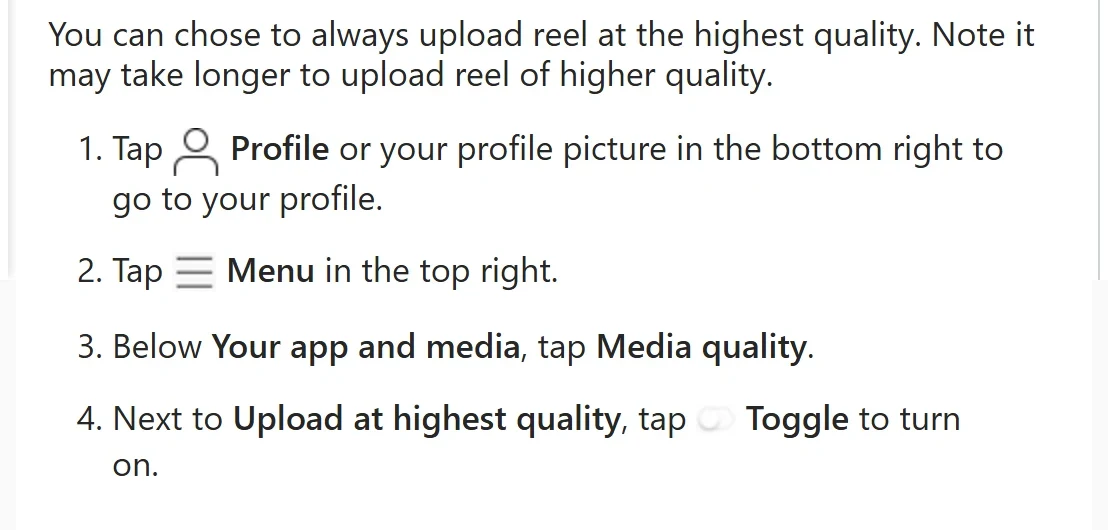
Instagram's Help Center describes the setting on its Reels page: "You can chose to always upload reel at the highest quality. Note it may take longer to upload reel of higher quality."1 The steps are:1
- Go to your profile and tap Menu in the top right.
- Under Your app and media, tap Media quality.
- Turn on Upload at highest quality.
Instagram's Help Center uses two names for this menu: its Reels page says Media quality under Your app and media, while its data-saving page says Data usage and media quality.1 3 Menus differ between app versions, so look for Media quality.
Data Saver affects playback, not uploads
You'll see advice to turn off Data Saver to improve your uploads. Instagram's Help Center describes Data Saver and Use less cellular data as settings for how videos load on your phone: "By default, Instagram preloads videos so they start faster whenever possible," and these settings stop that over mobile data.3 On Android, Data Saver comes with a High Resolution Media option (Never, WiFi only, or Cellular + WiFi) that controls when Instagram "will show you high resolution media."3
So if a video looks blurry on your phone but fine on someone else's, check those settings. Instagram describes them as affecting what you see, and says nothing about uploads.
Instagram lowers quality for videos nobody is watching
In October 2024, Mosseri answered a question about why older Stories looked blurry. As reported by Social Media Today, he said "In general, we want to show the highest quality video we can when someone is watching a Story or Reel," but that if something hasn't been watched for a long time, Instagram moves to a lower-quality version. "It works at an aggregate level, not an individual viewer level," and "It's not a binary threshold, but rather a sliding scale."2 Social Samosa quoted him saying that if a video is "watched again a lot, then we'll re-render the higher quality video," and, in a later reply, that "the quality shift isn't huge."4
In practice, an older video that nobody watches any more may look softer than it did on upload day, and there's nothing in your settings that changes that. Mosseri's view, as reported, was that whether people engage "is way more based on the content of the video than the quality."4
Export settings that help
Instagram's guidance for Reels is a shape of 1.91:1 to 9:16, at least 30 frames per second and at least 720 pixels.1 For a full-screen Reel, the usual export is 1080 × 1920 at 30 or 60 fps.
Instagram's own video editor, Edits, comes with a more specific recommendation. On Instagram's creators blog, an Edits product manager wrote: "For the best quality, export at 2K, HDR and 60 fps," adding that "Instagram will prioritise playback up to those settings," and that sharing straight from Edits to Instagram gets "priority processing."5 That's Instagram's own claim about its own app, and we haven't verified it.
Three habits that avoid unnecessary quality loss:
- Upload the original. A video you downloaded, screen recorded or sent through a messaging app is likely to have been compressed already, so it has less detail to start with.
- Keep to the supported shapes. Reels accept 1.91:1 to 9:16.1 For photos, Instagram says a shape outside its range "will be cropped to fit a supported ratio."6
- Don't export at a low frame rate. Under 30 fps is below Instagram's minimum for Reels.1
Photos look soft too
Photos have a hard limit: "If you share a photo at a higher resolution, we size it down to a width of 1080 pixels."6 Uploading a huge photo doesn't make it sharper, and a photo narrower than 320 pixels is enlarged.6 We list every size Instagram accepts in Instagram photo and video sizes.
Frequently Asked Questions
Why do my Instagram Stories look blurry?
Check Upload at highest quality first.1 If an older Story looks softer than it did when you posted it, that fits what Mosseri described: Instagram moves videos that haven't been watched for a while to lower quality.2
Is Upload at highest quality on by default?
Instagram's Help Center doesn't say. Turn it on to be sure.1
Does Data Saver make my uploads blurry?
Instagram's Help Center describes Data Saver as controlling how media loads and displays on your phone, and says nothing about uploads.3
Should I upload 4K video to Instagram?
Instagram's own advice for its Edits app is to export at 2K, HDR and 60 fps.5 It doesn't say 4K is played back.
Why does my video look fine in my camera roll but bad on Instagram?
Instagram may show a lower-quality version of a video depending on how much it's being watched.2 Turning on Upload at highest quality and uploading the original file give it the best start.
Sources
All pages were read on 8 October 2026. Help Center pages show no revision date.
- Instagram Help Center, Reel size and aspect ratios on Instagram.
- Social Media Today, Instagram downgrades video quality for less viewed clips, Andrew Hutchinson, 27 October 2024.
- Instagram Help Center, Use less data on Instagram.
- Social Samosa, Instagram reduces video quality of clips with low engagement, 28 October 2024.
- Instagram for Creators, Gaurav Savla (Edits product manager), Best camera and export settings for high-quality Instagram reels.
- Instagram Help Center, Image resolution of photos you share on Instagram.
The StoryStalker editorial team
StoryStalker runs a viewer for public Instagram content, so we follow how Instagram works and how it changes more closely than most people would want to. Each guide is built from Instagram's Help Center, Meta's announcements and developer documentation, and named reporting, and every claim links to the page it came from. When Instagram doesn't document something, we say so instead of guessing. Spotted something out of date? Tell us and we'll fix it.
Published July 13, 2026 · Updated October 8, 2026 · How we work
Keep reading
Instagram photo and video sizes in 2026
Instagram's own numbers: 1080 px wide, ratios from 1.91:1 to 3:4 for photos and up to 9:16 for Reels, 20 items per carousel. Official specs versus convention.
7 min readHow to download Instagram Reels
Instagram has its own Download button for public Reels, with a watermark. Why it is sometimes missing, what happens to the music, and other ways to save a Reel.
6 min readCan you see who viewed your Instagram Reel?
No. Reel insights give counts, not names, including the confusingly named Viewers metric. What you can see, who can see your likes, and what a view counts.
6 min read